How to Switch from Zendesk: A Practical Migration Guide
The honest playbook for migrating off Zendesk: turn on exports, pull tickets as JSON, export the help center through the API, swap email and the widget, then run in parallel. What transfers cleanly, what you have to rebuild, and what to do with Zendesk Talk.
Switching off Zendesk comes down to four steps: get data exports turned on and pull a real history (JSON tickets, users, and help-center articles via the API), stand up the new inbox and import into it, point email and the widget at the new tool, then run both in parallel before you cancel. The import can be quick. The part that actually takes time is the export setup, the help-center API work, and rebuilding the triggers and macros Zendesk will not hand you in the ticket export. Plan for that and the rest is mechanical.
Updated 27 Nov 2026. Zendesk export behavior is from Zendesk's own help center, checked that day. Prices are from zendesk.com/pricing and supportwire.ai/pricing, checked the same day.
Jump to a section:
- The four steps at a glance
- Step 1: Export your Zendesk data
- Step 2: Stand up the new tool and import
- Step 3: Point email and the widget
- Step 4: Run parallel, then cancel
- What transfers cleanly vs what you rebuild
- An honest note on Zendesk Talk
- A realistic timeline
- The migration-readiness checklist
Zendesk annual seat rates plus pay-as-you-go automated resolutions at $2.00 after the included allowance (5 per agent a month on Support Team and Suite Team, 10 on Suite Professional). Committed usage is cheaper, but this widget uses the public USD pay-as-you-go unit. SupportWire is monthly. Prices checked 27 Nov 2026.
- SupportWire $119.50
5 × $19 seats ($95) + 50 AI closes × $0.49
- Zendesk Support Team $245
5 × $19 + 75 PAYG ARs × $2.00 (email ticketing; 25 ARs included)
Support Team is email and ticketing. Chat, help center, and telephony start on Suite.
- Zendesk Suite Team $425
5 × $55 + 75 PAYG ARs × $2.00 (25 ARs included)
- Zendesk Suite Professional $675
5 × $115 + 50 PAYG ARs × $2.00 (50 ARs included)
The four steps at a glance#
| Step | What you do | Who does it | Typical time |
|---|---|---|---|
| 1. Export | Enable exports, pull JSON tickets, users, orgs, and help-center articles | You, or us if you are moving to SupportWire | A few hours to a couple of days, plus Zendesk's export queue |
| 2. Import | Load history, contacts, articles; rebuild the automations you still need | You and the new vendor | Same day for a guided import, longer for the rebuild |
| 3. Cut over channels | Forward a slice of email, then swap the widget | You | An afternoon once the inbox works |
| 4. Parallel run | Keep Zendesk open, then cancel at a clean boundary | You | Several days to two weeks |
If you are moving to SupportWire, the migration page is the product-side playbook: we migrate conversations, contacts, saved replies and help docs for free. This guide is the Zendesk-side work that still sits on you, including Talk.
Step 1: Export your Zendesk data#
Exports are not on by default. Zendesk's export guide is blunt about this. To protect account data, the account owner has to contact Zendesk Customer Support and include the Support subdomain before the Reports exporter appears. If you skip this email, you will stare at an empty tools page and lose a day. See Exporting ticket, user, or organization data.
Once exports are on, an admin goes to Admin Center, then Account, then Tools, then Reports, and runs the export. Zendesk emails a download link that stays valid for at least three days. Large exports can take minutes or more than a day. The UI tools are not available on Team plans; the REST API is still available on every plan.
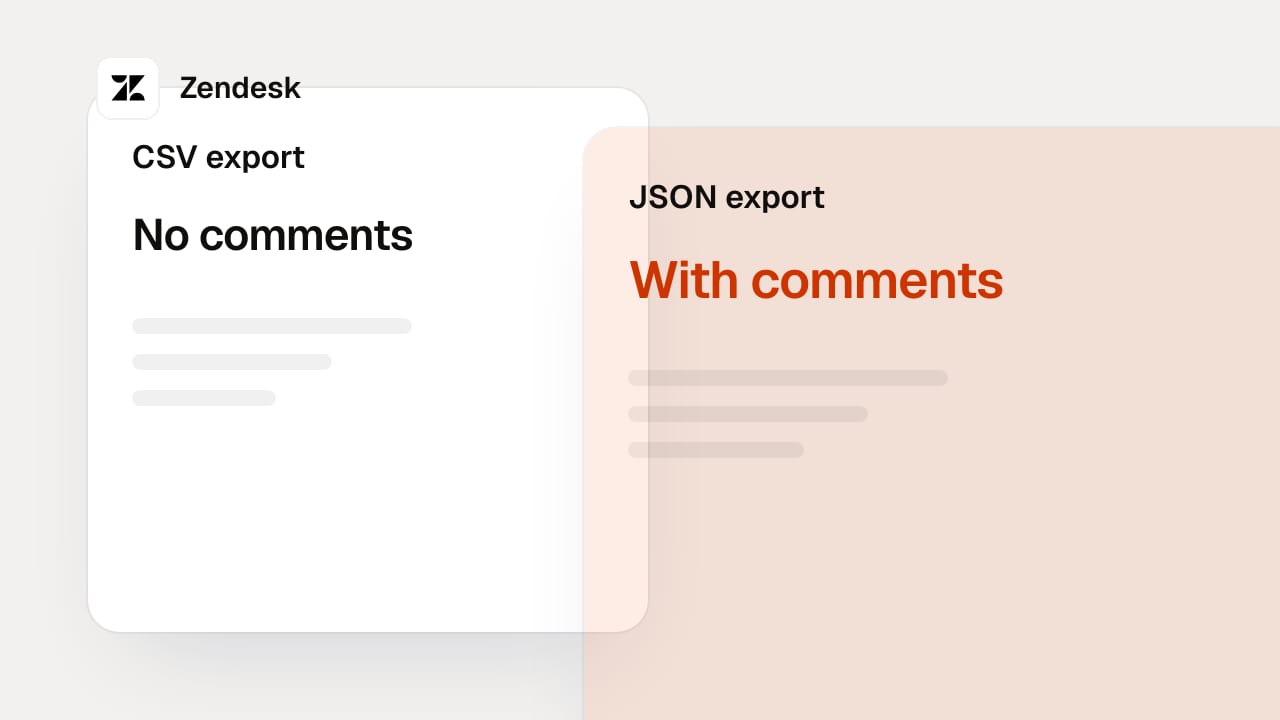
Tickets: use JSON, not only CSV. A CSV export does not include ticket comments or descriptions, and it skips deleted tickets. If you want the actual conversation, you need a JSON export (or the API). JSON is also the format Zendesk recommends above 200,000 tickets. Two limits to know: AI agent tickets cannot be exported, and a ticket larger than 1 MB may be written out without its comments.
Users and organizations export from the same tool. If you only need team-member data, Zendesk has a separate team-member export. Organization JSON exports can include deleted organizations.
Help center articles have no bulk-export button. Zendesk does not ship a prebuilt tool to download the knowledge base. The documented options are manual copy and paste, the Help Center API, or a paid partner. Attachments are downloaded separately. Web scraping is not recommended, and Zendesk says automated scraping at scale can violate its terms. Theme code can be downloaded on Knowledge Professional or above; otherwise you copy it, and it is not available through the API.
Macros, triggers, automations, views and SLAs are not in the ticket, user or organization export. Treat them as configuration. Before you cancel anything, screenshot or copy the ones that still fire. That list is your rebuild checklist for Step 2. Do not assume a "download macros" button will follow you into the new tool.
Step 2: Stand up the new tool and import#
Import the records first. Tickets (with comments) and users go in so agents are not flipping back to a cancelled Zendesk account to look something up. In SupportWire this is a guided import rather than a raw CSV wrestling match. We say most teams are live the same day. That is the import, not the entire programme.
Load help content into the Knowledge Store. The articles you pulled through the Help Center API become the source Kal reads from. Once they are in, Kal can start resolving the same repetitive questions your Zendesk macros and help center handled, without you rebuilding every trigger by hand.
Rebuild the configuration you inventoried. Recreate the macros as saved replies, the automations as their new-tool equivalents, the routing rules, the SLAs. This is manual almost everywhere, not a SupportWire quirk, and it is the honest bulk of the calendar time. A migration is a good moment to leave the stale ones behind.
If you are comparing desks rather than already committed, Zendesk vs SupportWire, Help Scout vs Zendesk and Freshdesk vs Zendesk are the fit and pricing pages. The wider shortlist is in best Zendesk alternatives for small business.
Step 3: Point email and the widget#
Keep Zendesk receiving mail while you prove the new path. Set up the new support address, then forward a copy or a slice of inbound mail to it. Do not cut the primary forward, MX record or Google Group until agents have answered real tickets in the new inbox. When that is stable, point the public address at the new tool and leave Zendesk as a fallback for a few more days.
Swap the chat widget in the same window, not before. Replace the Zendesk Web Widget snippet with the new snippet once the inbox can accept those conversations. If you also use messaging or social channels, cut them one at a time and watch the first day's volume.
Do not treat email forwarding as the export. Forwarding new mail does not bring history with it. History is Step 1.
Step 4: Run parallel, then cancel#
Leave Zendesk open until three things are true: agents can find past tickets in the new inbox, new email and chat land in the right place, and the automations you still need have been rebuilt. Then cancel at a clean boundary.
Check the renewal date first. Annual Zendesk plans are prepaid. Time the cancel for the end of the term so you do not pay for unused months. Export a final JSON snapshot before you lose access, and confirm the download opens.
If Talk is still taking calls, read the next section before you pull the seat count down.
What transfers cleanly vs what you rebuild#
| Asset | Transfers cleanly? | Notes, from Zendesk's docs and our importer |
|---|---|---|
| Ticket metadata (CSV) | Yes, with gaps | No comments, no descriptions, no deleted tickets |
| Ticket conversations (JSON or API) | Mostly | AI agent tickets cannot be exported; huge tickets may omit comments |
| Users and organizations | Yes | Exports must be enabled first |
| Help-center articles | With work | No prebuilt button; use the API or a partner; attachments separate |
| Help-center theme | Sometimes | Download on Knowledge Professional or above; otherwise copy by hand |
| Macros, triggers, automations, views, SLAs | No, not via the standard data export | Inventory and rebuild |
| Saved replies on the SupportWire side | Yes, we import them | Still rebuild anything that only lived as a Zendesk trigger |
| Messaging or legacy live chat | Separate export | Zendesk documents dashboard or API exports, by product |
| Zendesk Talk numbers and IVR | No, not into SupportWire | See below |
| Explore dashboards | Separate, one tab at a time | Not a help-desk import |
An honest note on Zendesk Talk#
SupportWire has no native phone or voice channel. If Talk is how customers reach you, moving chat and email off Zendesk does not move the phone queue. You either keep Talk (or another voice provider such as a native Suite competitor), or you accept that calls will not land in SupportWire.
Zendesk Suite Team, at $55 per agent per month billed annually, is the first public plan that includes telephony. Talk usage, including numbers and per-minute charges, is still billed on top of the seat. We are not quoting those usage rates here; they vary by country and are listed in Zendesk's Talk help articles.
A practical split a lot of teams use: move email, chat and the help center first, leave Talk on Zendesk until a voice replacement is live, then cancel the Suite seats. Do not discover this on cutover day.
A realistic timeline#
Small team, email and chat, a modest help center: one to three days for export and import, plus a few days of parallel running. The switch path is built for this.
Mid-size team with a lot of triggers, several brands, or a large knowledge base: a week to get the API export and the rebuild right, then a one to two week parallel window. The calendar is dominated by configuration, not by the importer.
Team that lives on Talk, or has more than 200,000 tickets: add time for JSON exports (and Zendesk's queue), a voice plan, and a harder email cutover. Budget two weeks or more before you give notice.
Kal can start during the SupportWire trial (14 days, no card). Use the parallel window to let it answer a slice of traffic, with handoff on, before you make it first line.
The migration-readiness checklist#
Work through this before you cancel. The interactive list below is the same sequence, so you can tick it off as you go.
Work through this before you cancel Zendesk. These are the steps that actually stall a move, including the ones Zendesk documents as missing from a standard export.
0 of 10 checked
You have 0 of 10 items checked. The unchecked ones are usually what slip on cutover day.
The short version, in order:
- Check your renewal date. Annual plans bill upfront.
- Ask Zendesk to enable data exports. The owner has to request it.
- Export tickets as JSON, not only CSV, plus users and organizations.
- Export the help center through the API, including attachments.
- List macros, triggers, automations, views and SLAs. Rebuild only the ones that still fire.
- Map email, the widget, social and phone. Have a Talk plan if you need one.
- Run both tools until history, mail and chat are proven in the new inbox.
- Cancel Zendesk at the end of the term, after a final export.
Whatever you pick, the steps are the same#
This guide is written around a move to SupportWire, but the Zendesk-side work does not change if you go somewhere else. JSON rather than CSV, an API pull for the help center, a rebuild of triggers, and an honest Talk plan are the difference between a clean week and a messy month.
If SupportWire is the destination, start at pricing or the migration page. The MCP server is included if you want Claude, ChatGPT or Cursor on the new inbox. For the invoice you are leaving, read Zendesk pricing. For the Intercom version of this playbook, see How to switch from Intercom.
Frequently asked questions
Start by asking Zendesk to enable data exports, then export tickets as JSON (CSV skips comments and descriptions), export users and organizations, and pull help-center articles through the Help Center API. Inventory macros, triggers, automations, views and SLAs so you can rebuild them. Point email and the chat widget at the new inbox, run both tools in parallel, then cancel when the new path is stable. SupportWire's migration page covers a guided import for Zendesk conversations, contacts, saved replies and help docs.
Not with the CSV exporter. Zendesk's own export guide, checked 27 Nov 2026, says CSV exports do not include ticket comments or descriptions, and they skip deleted tickets. Use a JSON export for conversation history. Exports are off by default: the account owner must contact Zendesk Customer Support to turn them on. The UI exporter is not available on Team plans, though the REST API is available on all plans. AI agent tickets cannot be exported. If a single ticket is larger than 1 MB, JSON may omit its comments.
There is no prebuilt help-center export button. Zendesk documents three supported paths: manual copy and paste, the Help Center API, or a paid partner. Attachments have to be downloaded separately. Knowledge has no CSV export. Theme code can be downloaded on Knowledge Professional or above; otherwise you copy it by hand, and it is not available through the API.
The import itself can be a day. SupportWire says most teams are live the same day, and we migrate conversations, contacts, saved replies and help docs for free. The part that takes longer is getting exports enabled, pulling a large help center through the API, rebuilding triggers and macros, and cutting email over safely. A small team that already has a clean article export can finish in a few days. A team with years of automations, several brands, or Zendesk Talk should plan one to two weeks plus a parallel-run window. Do not cancel Zendesk on the afternoon of the first import.
SupportWire has no native phone or voice channel. If Zendesk Talk is in daily use, keep a voice provider or leave calls on Zendesk while chat and email move. Suite Team, at $55 per agent per month billed annually, is the first public Zendesk plan that includes telephony; Talk usage (numbers and per-minute charges) still sits on top of the seat. Prices checked 27 Nov 2026 on zendesk.com/pricing.
SupportWire is $19 per seat per month, billed monthly, with unlimited free lite seats, 50 AI resolutions included, then $0.49 only when Kal closes a ticket. Zendesk Support Team is $19, Suite Team $55 and Suite Professional $115 per agent per month on annual billing. Automated resolutions include 5 per agent a month on Support Team and Suite Team, or 10 on Suite Professional, then $2.00 each on pay-as-you-go. See Zendesk pricing and the comparer in this guide. Prices checked 27 Nov 2026.
Updated November 2026